Kobo Libra · Images in .kobo/screensaver
Kobo Libra screensaver size1264 × 1680 px
Kobo Libra 2 and Libra Colour screensavers are 1264×1680 pixels. Put your images in the .kobo/screensaver folder, turn on Show current read and Show book covers full screen, and the Libra shows a random one every time it sleeps.
- Pixel-perfect fit with no black bars
- True e-ink preview
- Photos never leave your device
- Kobo Libra 2
- 1264 × 1680
- 16 grays
- .png
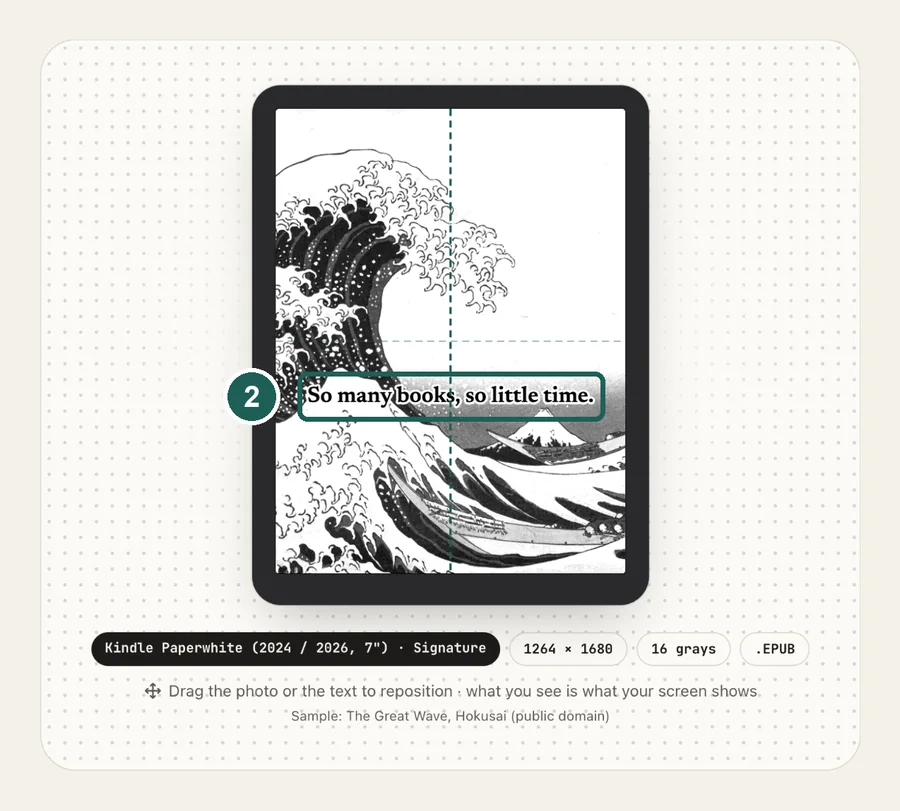
Drag the photo to reposition · live preview matches your screen
Sample: The Great Wave, Hokusai (public domain)
No picture that fits? Browse free artworks →
Don't see your model? Take a screenshot on your reader to find its pixel size (on Kindle, tap opposite corners simultaneously), then choose Custom.
- Connect by USB and copy the PNG into .kobo/screensaver (create the folder; the .kobo folder is hidden).
- Settings → Energy saving and privacy → turn on Show current read and Show book covers full screen.
Something not working, or an idea? Tell us. We read everything.
How it works
 1
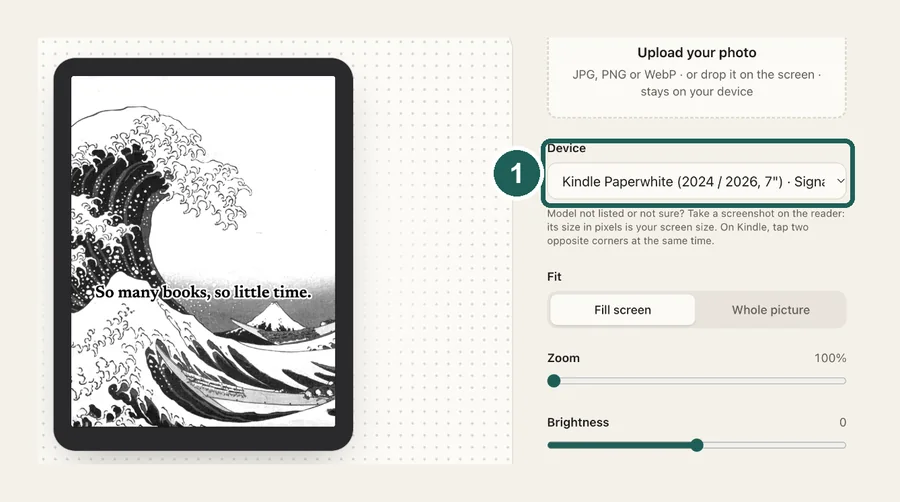
1Use the exact size
1264×1680 pixels, portrait. Anything else gets scaled, padded with bars, or cropped by the device.
 2
2Tune for e-ink
The Libra is often held sideways, but the sleep screen is always portrait. Use Fill screen and drag to keep the subject in frame, or Whole picture to letterbox a landscape photo.
 3
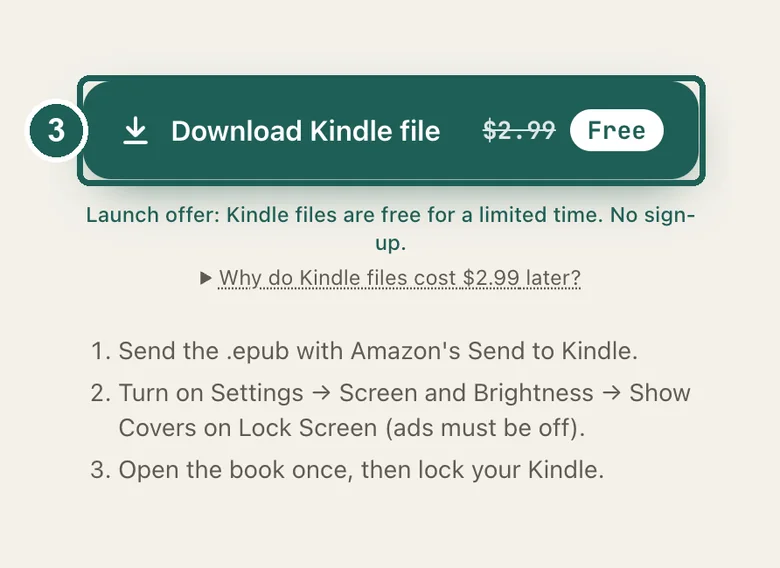
3Install
Images in .kobo/screensaver (firmware 4.13+). Step-by-step instructions are under the download button.
What it looks like on the Kobo Libra
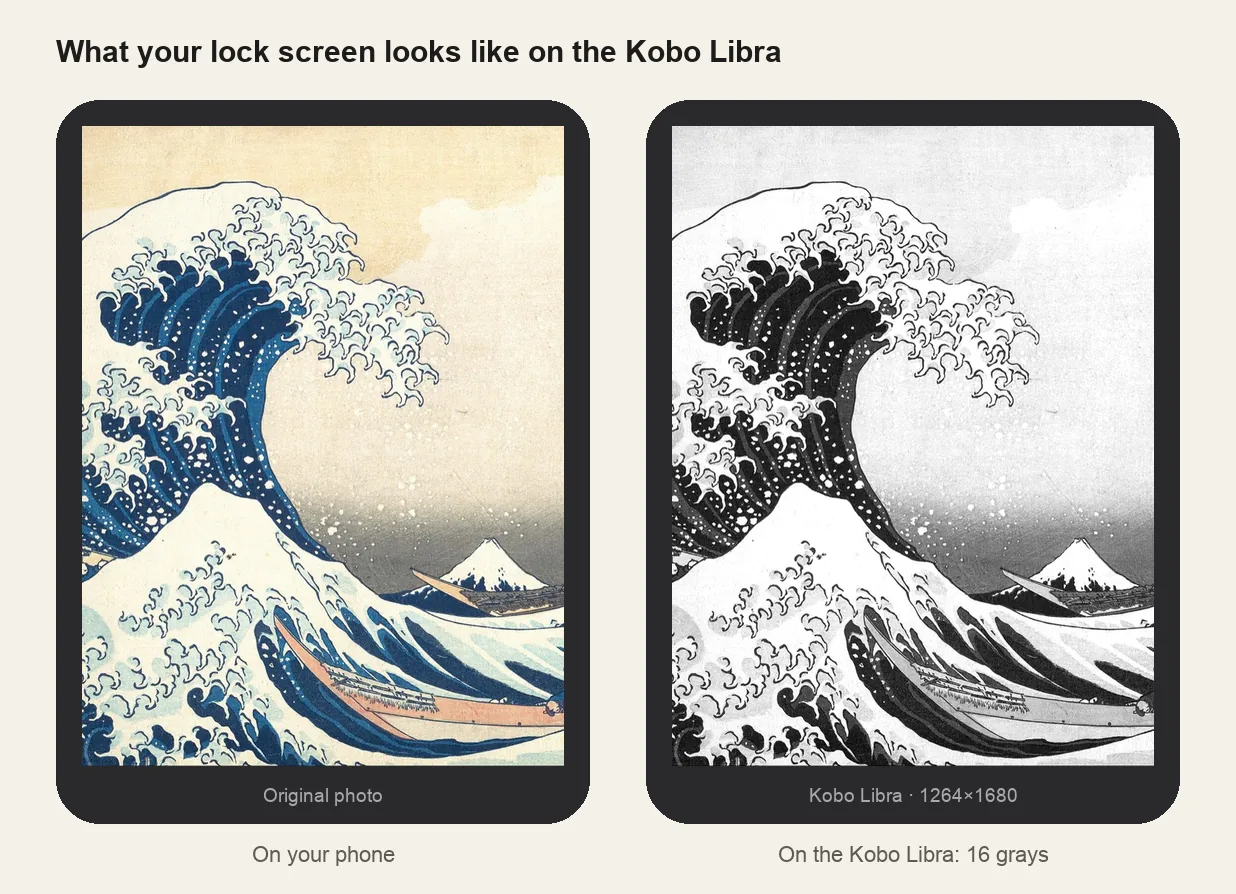
Kobo Libra at a glance
| Models | Kobo Libra 2 and Libra Colour |
|---|---|
| Screensaver size | 1264×1680 px (portrait) |
| Screen | 7-inch, 300 ppi (Libra Colour: color at 150 ppi) |
| How it's installed | Images in .kobo/screensaver (firmware 4.13+) |
KOBOeReader/└── .kobo/ ← hidden folder└── screensaver/ ← create it: lowercase, singular├── lock-screen-1.png└── lock-screen-2.png ← one is picked at random
Libra Colour
Pick Libra Colour in the maker to keep colors. Like all Kaleido 3 screens it shows color at 150 ppi, so bold images work better than fine detail.
Turning screensavers off again
Rename the folder (for example to screensaver_off) and Kobo goes back to showing book covers.
Other sizes and models: see the full e-reader screen size chart.
Common questions
›My Libra Colour screensaver isn't working
Make sure a book is open, the folder is .kobo/screensaver (lowercase, singular), and both Show current read and Show book covers full screen are on.
›Colors look washed out
Kaleido 3 mutes colors. Increase saturation and brightness a little before copying.
›It shows my book cover, not my image
The screensaver folder wasn't found. Check its name and location, and that the images are JPG or PNG.