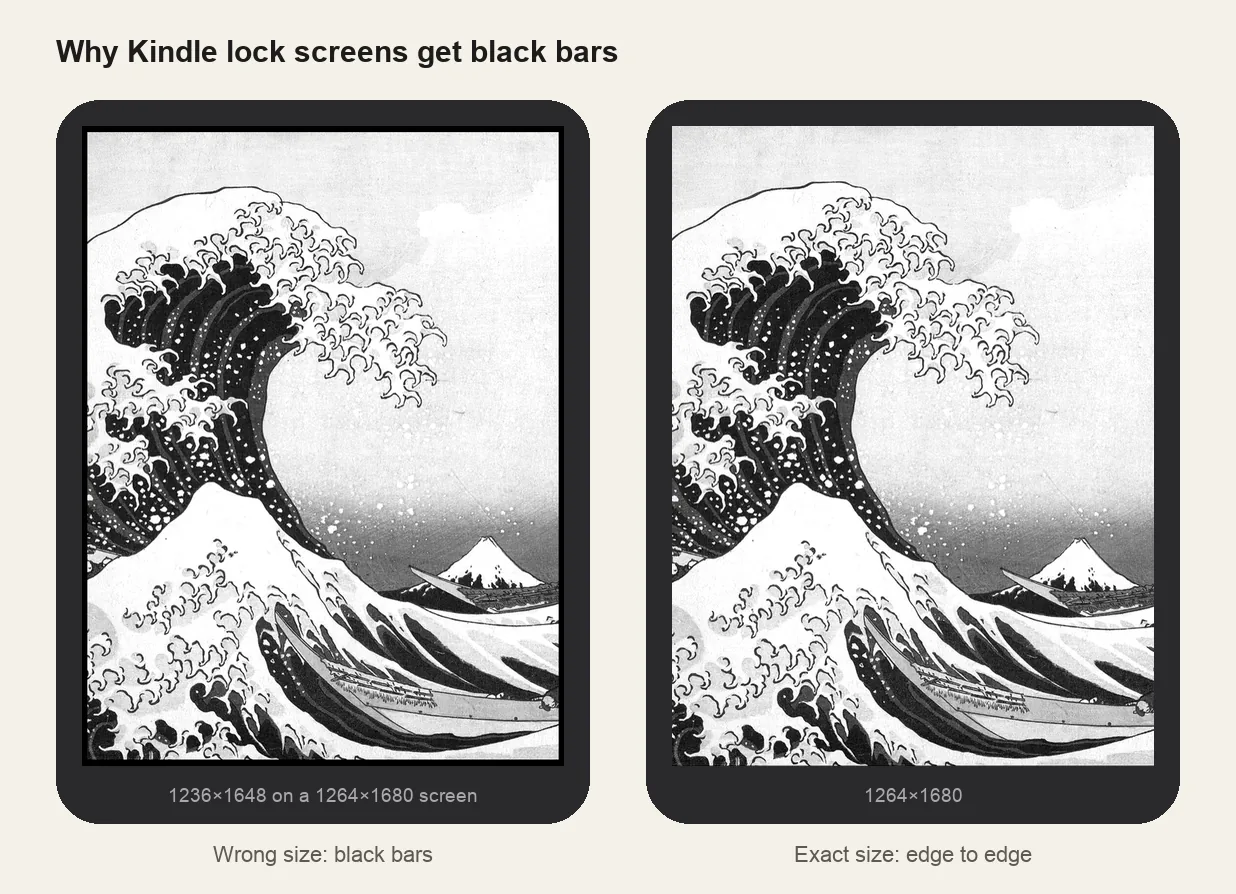
Kindle has no "choose a wallpaper" setting. What it does have is Show Covers on Lock Screen: the lock screen displays the cover of the last book you opened. Make a tiny book whose cover is your picture, open it, and your picture becomes the lock screen. It uses only Amazon's own features, with no jailbreak.
Before you start: ads must be off
On Kindles with Special Offers, the lock screen shows ads and the cover setting is hidden. Remove the offers first. See how to remove Kindle lock screen ads.
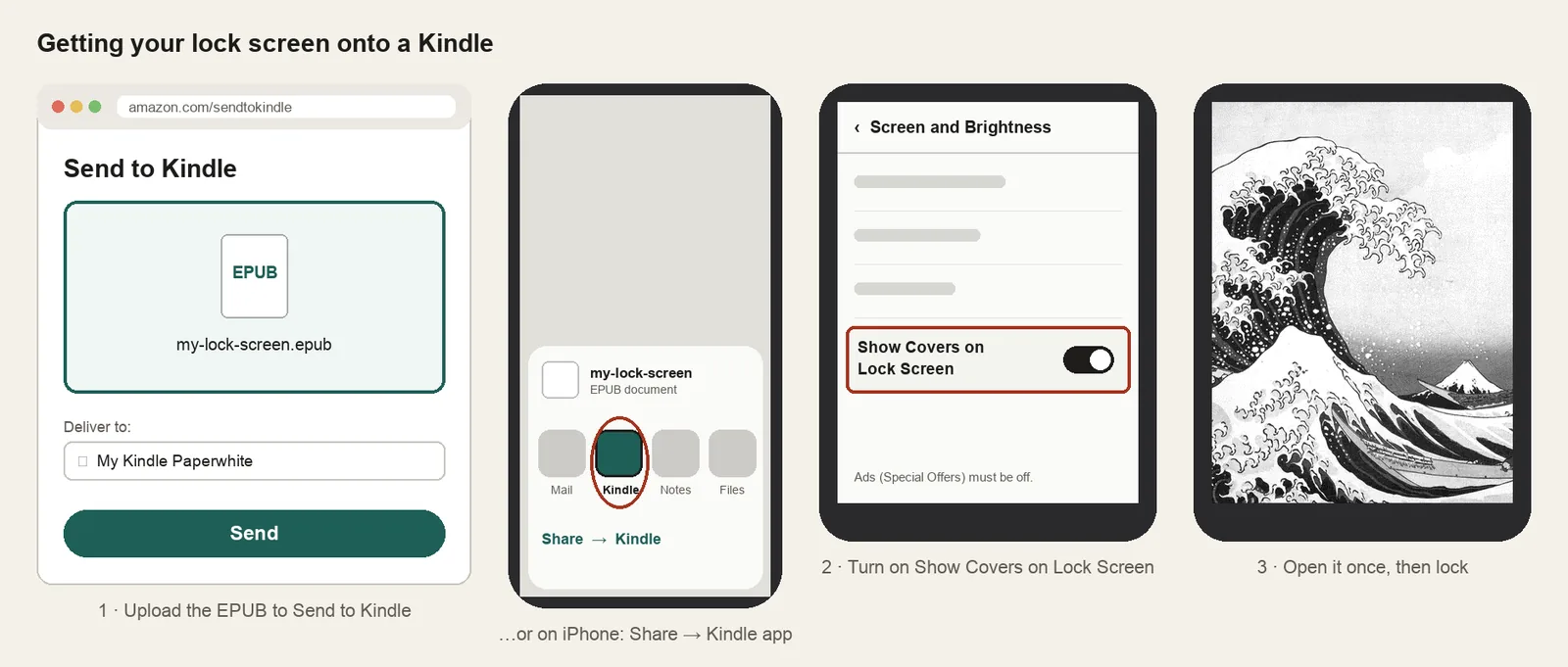
1. Turn on Show Covers
Swipe down from the top, tap All Settings → Screen and Brightness and turn on Show Covers on Lock Screen. On older software the switch is under Settings → Device Options → Display Cover.
2. Make a cover that fits your screen exactly
This is where most attempts go wrong. If the cover's shape differs from the screen's, Kindle fills the difference with black bars. Make the cover at your model's exact resolution:
| Model | Resolution |
|---|---|
| Paperwhite (2024 / 2026, 7"), Colorsoft, Oasis (2017 / 2019) | 1264×1680 |
| Paperwhite (2021, 6.8") | 1236×1648 |
| Kindle (2022 / 2024 / 2026), Paperwhite (2015 / 2018), Voyage, Oasis (2016) | 1072×1448 |
| Scribe (2025 / 2026, 11"), Scribe Colorsoft | 1980×2640 (unconfirmed) |
| Scribe (2022 / 2024, 10.2") | 1860×2480 |
| Kindle (2016 / 2019) | 600×800 |
Not sure which model you have, or it isn't listed? Take a screenshot on the Kindle by tapping two opposite corners at the same time. The screenshot's size in pixels is your screen resolution.
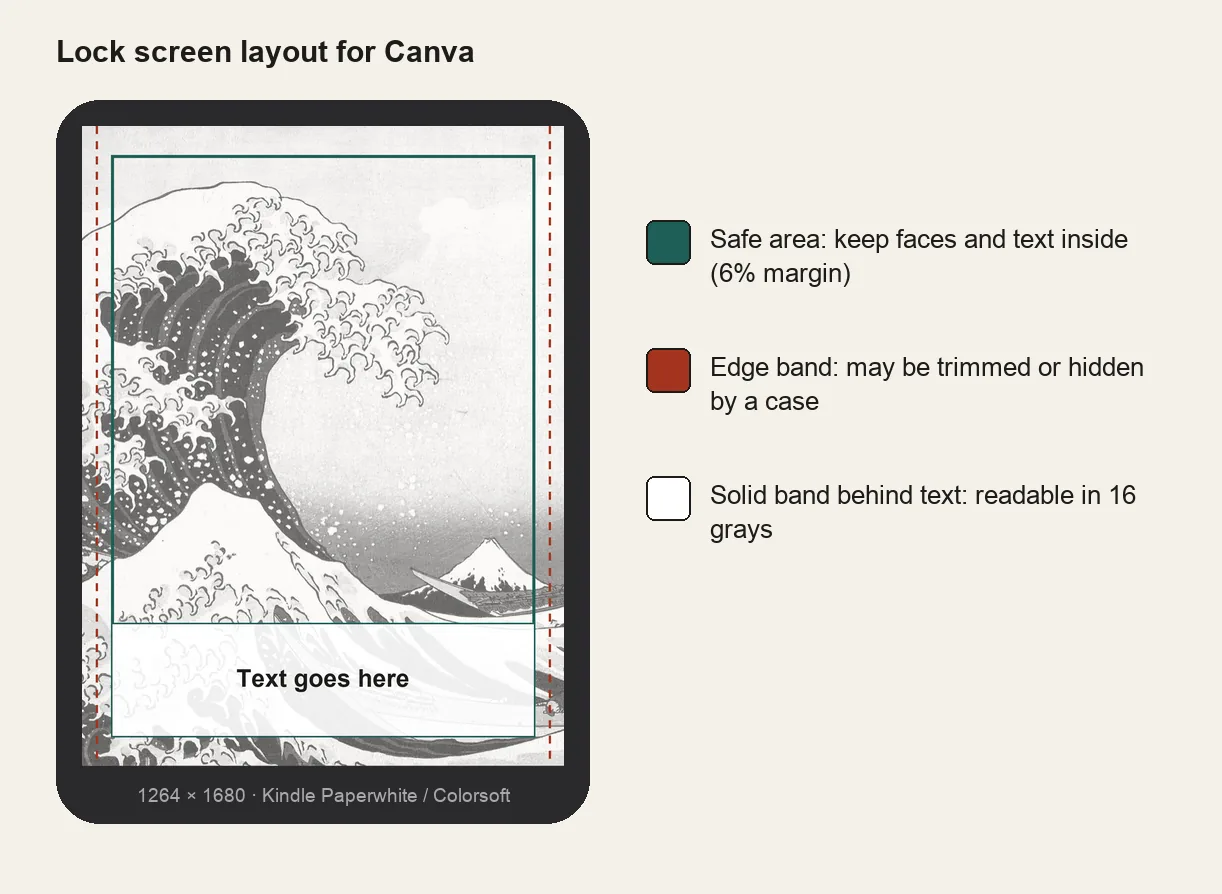
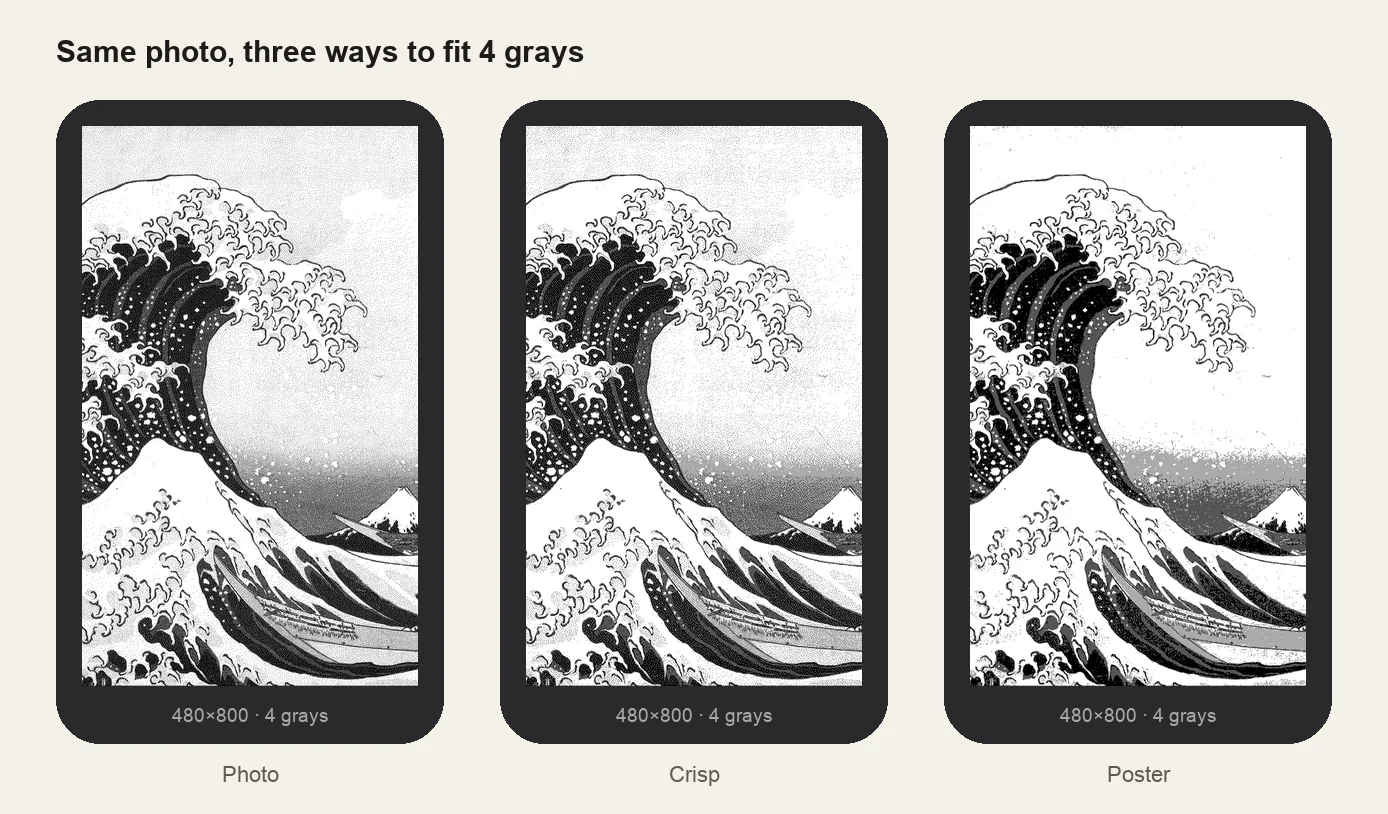
The Kindle lock screen maker crops your photo to that size, tunes it for grayscale (Colorsoft keeps color) and packs it into a one-page EPUB with the cover set correctly.
3. Send it to your Kindle
- Open Amazon's Send to Kindle page in a browser and sign in with the account your Kindle uses. On iPhone it's quicker: open the .epub in Files, tap Share and choose the Kindle app.
- Upload the .epub and choose your Kindle.
- On the Kindle, make sure Wi-Fi is on. If it hasn't arrived after a minute, tap Sync.
4. Open it once, then lock
Open the new book from your Library, then press the power button. Your picture is now the lock screen.
Good to know
- It follows the last book you opened. Open a different book and its cover takes over. Re-open your lock screen book to bring the picture back.
- Keep a few. Make several lock screen books and switch by opening whichever you want.
- Grayscale is normal on every Kindle except Colorsoft. Photos with clear light and dark areas look best.